Convert PDF to Markdown: Resolve Password and Permission Errors
If a PDF-to-Markdown conversion stops with a password error, first obtain a copy you are authorized to extract and confirm that it opens in your PDF reader. Our browser converter has no password-entry field, so a file requiring an opening password needs an accessible working copy before conversion.
Keep the original PDF while preparing that copy. Layout and OCR settings will not resolve an opening-password error.
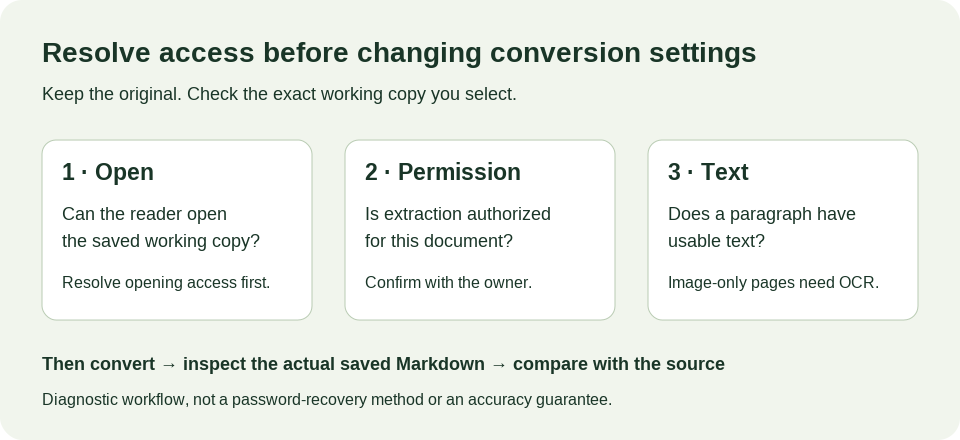
Find the step that fails
Open the actual saved file in a PDF reader. A website sign-in and a document password are separate credentials; the password used to download a file may not open it.
If the reader asks for a password before showing pages, resolve that with the owner or your authorized PDF application. If it opens but restricts copying, check the document's security settings and the owner's extraction requirements. Adobe's security documentation distinguishes document-opening access from permissions.
For a document you control, follow your application's documented password-removal workflow. Adobe provides Acrobat instructions. You may need the relevant password, and you must save the changed copy.
Retry with the exact working copy
- Save the accessible copy under a distinct filename, such as report-working.pdf.
- Close it and reopen it in the reader.
- Select that same file in the converter and retry.
If the converter still reports a password error, first check that you did not select the older protected download. Keep the exact reader and converter messages if both selections are correct.
If you cannot obtain the required access, request an accessible source from the owner. Renaming the file does not change its protection settings.
If it opens but produces no Markdown
Try selecting a sentence and copying it into a text editor. If the page contains only an image, use the OCR workflow after access is resolved. An empty result can also come from damaged text or unsupported content, so inspect the page rather than assuming every empty result is a scan.
If words are present but columns are interleaved, investigate layout. The experimental table and two-column option handles some text layouts; it neither unlocks a file nor performs OCR.
If the preview alone appears shortened after a successful conversion, follow the full-export guide instead of changing passwords again.
What to include in a support request
Report the exact error, the step where it appears, whether the working copy opens after reopening, and whether a harmless sample PDF converts. You do not need to send a password or private document to describe those facts.
After conversion, use the output checklist to check the content you plan to reuse.
Sources and review: Adobe security and password-removal documentation linked above; password-entry limitation checked against the current browser tool. Reviewed October 26, 2026.