PDF to Markdown Without Uploading: What Still Connects to the Internet
You can convert a PDF to Markdown without sending the document to a conversion server. In our browser converter, the selected PDF is read on your device. Optional OCR also runs there. The website still loads application files and basic usage statistics, so file-local processing does not mean the page makes no network requests.
Start with the public two-page sample before choosing your own document. For files governed by a workplace or client policy, use the processing method that policy permits.
Convert a local file and check the result
- Download the public sample to your computer, then open the converter and choose that saved PDF. Choosing a local file gives the page access to it; it does not by itself mean a server upload has occurred.
- Choose Convert to Markdown. Review the editable text against the original page. The current tool accepts one PDF up to 20 MB and 100 total source pages.
- If a page has no extracted text layer, choose its text language and run the offered OCR. The engine and language files load from this site when needed; recognition runs in your browser.
- Check the words and numbers, then download the Markdown. If you need whole-page PNG references too, follow the image ZIP instructions.
A file picker is a way to grant access to a local file. Uploading it requires an additional transfer. MDN's File API guide explains this distinction through local file access and separate upload examples.
What our public-sample network check showed
On November 17, 2026, we selected the same self-created PDF from local bytes in two fresh Chrome contexts: a desktop viewport and a mobile-sized viewport. We ran text conversion, English OCR on the image-only page and a Markdown download.
We inspected observed request URLs and available request bodies, looking for a unique test filename, known sample phrases and the complete sample bytes. We found none of those markers in outbound requests. No non-GET request outside the intercepted Google Analytics collection endpoints was observed. The saved Markdown matched the final editor output in both runs.
The requests had different purposes:
- Application files: the page, scripts, fonts and PDF reader loaded from ai-tools-pick.com.
- OCR resources: the worker, engine and English language model loaded from this site, including
eng.traineddata.gz. Those requests downloaded recognition resources; we did not observe a document upload to an OCR service. - Usage statistics: a separate frame on ai-tools-pick.pages.dev loaded the Google tag. We intercepted collection requests before delivery to avoid adding our test actions to site metrics. The inspected attempts included fixed events such as
pdf_file_selectedandpdf_conversion_complete.
In the mobile-sized run, we also blocked the Google tag script. Text conversion, OCR and downloading still completed. This tests operation with analytics blocked; it does not establish offline support.
The saved check summary, text-only output and OCR output make this example reviewable. These are two runs of one sample, supported by a review of the current conversion and statistics code. They are not a security audit, a test of browser extensions or a guarantee about future site versions. Our request check cannot rule out every possible encoding of data.
Local OCR can still misread a word
Page 2 of the sample contains no PDF text layer. Its original sentence is:
This example was created for AI Tools Pick.The actual OCR output in both runs was:
This example was created for Al Tools Pick.The capital I became a lowercase l. Compare the original page image with the saved OCR output, then correct the word in the Markdown editor. The downloadable evidence retains the uncorrected result.
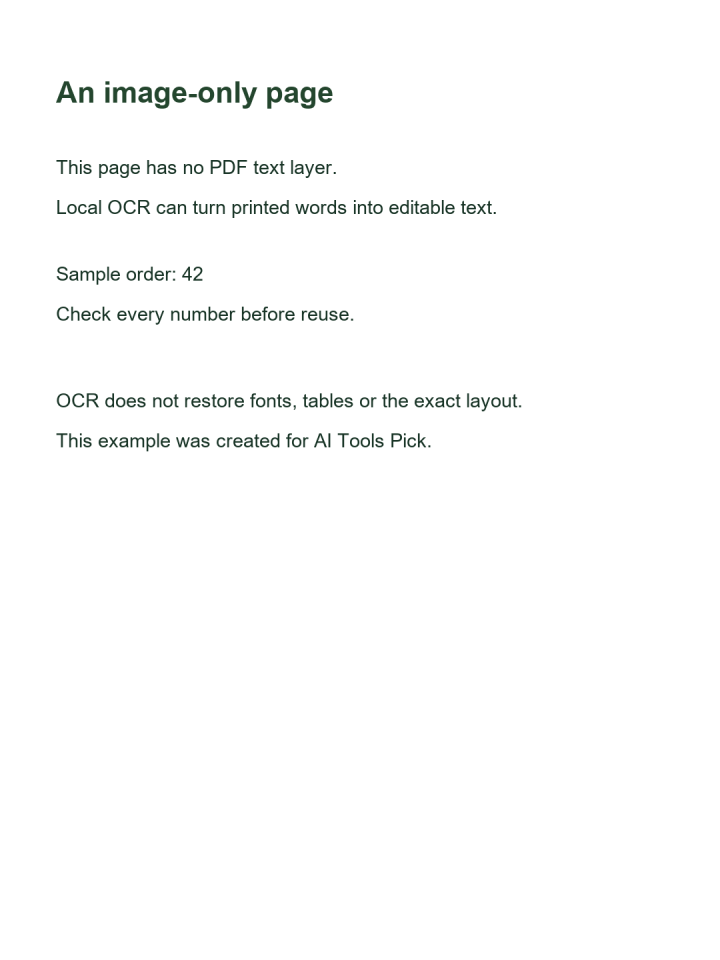
Processing location and transcription quality are separate checks. For longer scans, use the OCR review workflow and verify names, numbers and required passages against their source pages.
What usage statistics still reveal
Basic usage statistics start automatically when our tool opens. Our event code sends fixed action names with a fixed tool URL and title. It does not add document names, contents, output, page numbers or counts, selected language, raw errors, referring-page details or query strings.
Google code runs in a separate-origin frame that cannot read the converter document or its file controls. Google can still receive ordinary network and browser/device information, and may use analytics cookies or identifiers. Our tag disables advertising storage, ad personalization and Google Signals. These settings do not make a visit anonymous. See our statistics privacy details and Google's data safeguards.
Check another tool before using a sensitive file
Use a harmless public PDF first. Open Chrome's Network panel before loading the tool, keep recording while selecting the file, and run OCR separately if offered. Inspect destinations, methods and request payloads; the official Network guide shows where to find them.
Do not judge only by GET versus POST. A POST can carry a statistics event, while a GET query can carry data. Check what is sent and which action caused it. Avoid sharing an unredacted network archive: it can contain cookies, identifiers or document data.
Finally, do not assume a tool will work after disconnecting just because processing happens locally. The page, worker or an unused OCR language model may still need to load. Our check above did not test an offline restart. If you require no network activity at all, use an approved local application with its dependencies prepared and verify that workflow separately.
Sources and method reviewed November 17, 2026. No private owner PDF was used, no competing converter was benchmarked, and analytics interception does not prove dashboard receipt.