Markdown to PDF Online: Check Where Your Document Goes
For a public Markdown document, an online converter can be a convenient export route. For a document that must stay on your device, choose a local exporter or a browser-side tool whose documented behavior meets that requirement. Check linked images as well as the .md file before converting.
A file picker tells you how to select input. It does not tell you whether conversion runs in the browser or on a server.
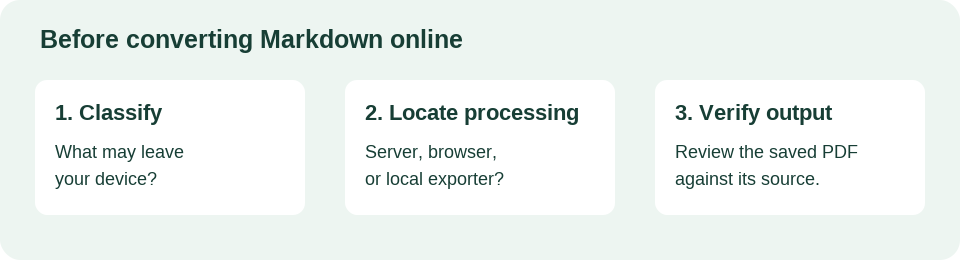
Choose between three routes
- Server conversion: the service receives the document for remote processing. Read its file-handling and retention policy before uploading.
- Browser-side conversion: processing can run on your computer while the page still loads scripts, fonts or statistics over the network.
- Installed local software: conversion runs locally, but external images, models and optional services may still make network requests.
For a hosted example, CloudConvert offers MD-to-PDF conversion. Its security statement describes its infrastructure and file handling. Use the current policy for the exact feature you choose.
For a local route, the Markdown-to-PDF guide covers editor export and Pandoc. This site's browser tool converts PDF to Markdown in the opposite direction; it does not create PDFs.
Try the workflow with a made-up document
Before selecting a private file, use a small example you create yourself:
# Sample project
This note contains public test text.
- First task
- Second task
Supply your own harmless diagram if you need to test images. This helps you discover whether the service accepts assets and renders your required syntax without exposing the real material.
Check the real document for private URLs, access tokens and internal screenshots before using an approved route. An image reference can reveal information even when the paragraph around it is public.
Find answers to the handling questions
Check what the provider says about the input it receives, the conversion location and what happens to input and output afterward. If the answer is unclear and the file must remain local, use a documented local route or ask the provider before uploading it.
Keep the check proportionate to the document. A public tutorial and an unpublished customer report have different requirements. A general privacy badge does not replace the information you need about that conversion feature.
Optional: inspect a synthetic conversion in Chrome
If you use developer tools, open the Network panel before selecting the sample or starting conversion. Inspect the request destinations and available payload details around both actions. Separate transfers containing document data from ordinary asset downloads.
That observation describes one run. It cannot establish a permanent no-upload guarantee or show what happened on a server. Review captured logs before sharing them because they can include session information.
Finish with the saved PDF
After choosing a route, convert the approved working copy. Open the saved result and check the figures, code and required links. Keep the source and relevant settings together.
For missing assets, use the local-image guide. For clipped pages or different preview behavior, use the export checkpoints. Keep VS Code's preview protections enabled when inspecting unfamiliar content.
Sources and review: CloudConvert's conversion and security pages, Chrome Network documentation and VS Code Markdown documentation linked above. Reviewed October 26, 2026. Provider statements are not an independent security audit.