Markdown File to PDF: Separate Rendering Errors from Print Layout
To convert a Markdown file to PDF, open it in an editor with PDF export, check the rendered content, then export and inspect the saved pages. For a repeatable command-line route, use Pandoc with a supported PDF engine. Renaming .md to .pdf will not convert the document.
When the result breaks, find the first failing step: content already wrong in preview needs a Markdown or renderer fix; content that breaks only on paper needs a print-layout fix.
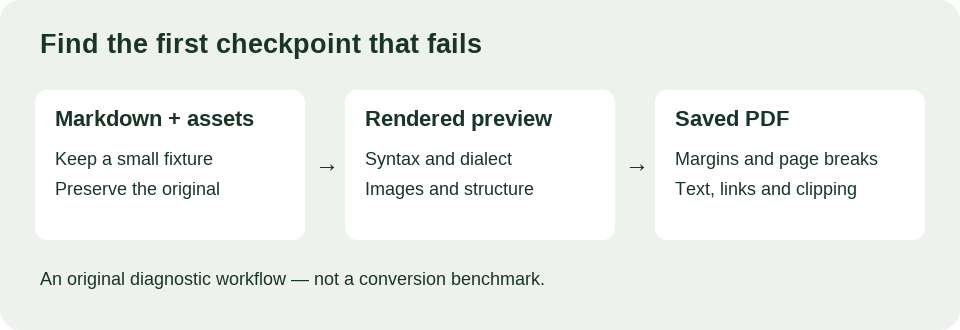
Choose an export route
For a one-off file in VS Code, the third-party Markdown PDF extension provides an export command. Open the Markdown, use the Command Palette to find markdown-pdf: Export (pdf), and inspect the saved file. VS Code's built-in preview and the extension's Chromium export are separate renderers, so check both when a problem occurs.
For a local command-line workflow, install Pandoc and a PDF engine following its PDF documentation, then run:
pandoc report.md -o report.pdfThe default route requires a LaTeX engine. If the command reports a missing engine, install or configure that dependency; changing the Markdown headings will not resolve it. Other engines have their own requirements.
An online service is another choice for files you can upload. Check where processing happens and how it accepts image assets before selecting the real document. This site's browser converter works from PDF to Markdown, not the reverse.
Keep the Markdown and images together
Work on a copy containing the .md file and its referenced images. For example, a link to images/diagram.png needs that asset available to the exporter. A preview on your computer does not give an online service access to the same folder.
If images are missing, use the image-path guide. If table punctuation appears as ordinary text, check whether the selected Markdown dialect supports tables. The CommonMark reference covers the basic syntax; extensions vary between renderers.
Isolate the difficult part before re-exporting
Put one image, the widest table and the longest code line into a short test document. Add a small reading check such as:
# Export check

Reference code: INV-2048-B

- Keep the final letter B.
- Keep the minus sign in -12.50.
- Keep the unit in 8 ms.
These invented strings make clipping and lost punctuation easier to spot. Add the scripts and characters your own document uses.
If this file is already wrong in preview, fix its source or renderer support. If it is correct there but clipped in the PDF, adjust paper size, margins or orientation and export the same short file again.
Apply layout settings to the right engine
For HTML-to-print routes, MDN's printing guide explains @media print and @page. These can control print styles when the exporter accepts them. They do not control a Pandoc export using LaTeX.
Code that scrolls on screen may be clipped on paper. Use the code-block guide for wrapping and page-break choices.
Open the saved PDF before sharing it
Check the widest element, page boundaries and important links in a PDF reader. Search for INV-2048-B in the example and compare the punctuation. If readers will run a code example, copy it into a plain-text editor and compare it with the source.
Keep the Markdown, assets, export settings and final PDF together. If the Markdown came from an earlier PDF conversion, use the output checklist and table guide before exporting it again.
Sources and review: VS Code Markdown PDF extension, Pandoc PDF documentation, CommonMark and MDN printing guidance linked above. Reviewed October 26, 2026. Export commands and examples are documentation-based, not a converter benchmark.