PDF to Markdown vs TXT: Why Fonts Change and Structure Matters
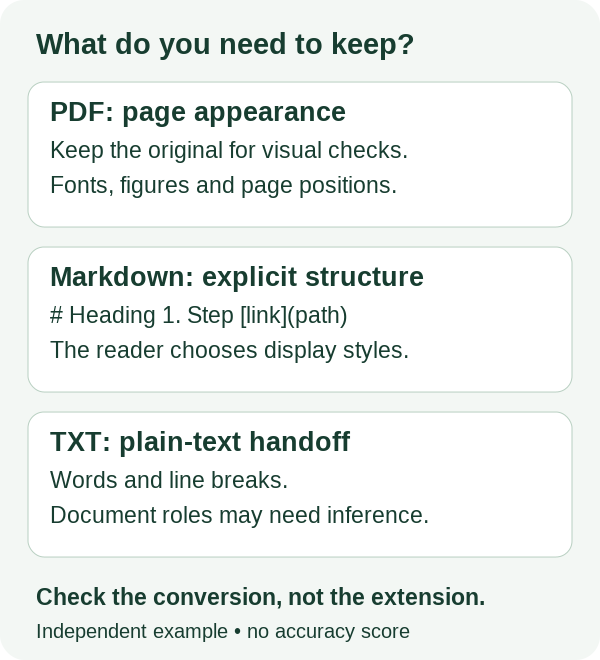
Choose Markdown when you want to reorganize a PDF into headings, paragraphs, lists and editable notes. Choose TXT when you need plain words and line breaks. Keep the PDF when its exact fonts, sizes and page arrangement matter.
Markdown lets you change the presentation while keeping explicit document structure. That is useful for an Obsidian note, a documentation page or a draft you plan to edit.
See what Markdown adds
Imagine an instruction sheet with a heading and a two-step list. Here is an independently written Markdown version:
# Before you begin

Save a backup before changing the working copy.

1. Open the document.
2. Check that the final page is present.

**Review the saved output before sharing it.**
The markers identify a heading, numbered list and emphasis. A compatible reader can use those roles to create an outline and apply consistent styles. TXT can contain the same words and numbered lines, but it does not require a reader to interpret Markdown markers.
The reader's theme chooses the fonts and sizes. Switching themes can change the appearance without changing the saved words or heading levels. To see the original typeface or position of a diagram, open the source PDF or a page image.
Tables need a compatible extension such as GitHub Flavored Markdown. Check that the destination reader supports it and that values still belong to the right columns.
Turn printed lines into useful paragraphs
A PDF can position one printed line at a time. A sentence wrapping across a narrow column should usually become one paragraph in Markdown. A blank line after every printed line makes editing harder.
Joining every line can also merge a heading with body text, flatten a list or mix two columns. Compare a multi-line paragraph, a section boundary and a list with the original before using the result.
For example, these two printed lines belong to one sentence:
Save a backup before changing
the working copy.
An edited Markdown paragraph can read:
Save a backup before changing the working copy.This is a manual illustration of paragraph repair, not captured converter output. Preserve the words and use the source layout to decide where the boundary belongs.
What our browser converter can recover
The browser converter extracts selectable text locally. Heading detection uses font size, so a large line may need a manual level adjustment. Optional layout reconstruction handles some clear numeric tables and left-to-right columns.
The optional paragraph-grouping setting joins some close, aligned body lines of similar size. It is off by default and does not rewrite words or remove printed hyphens. Use page comparison to inspect the result where the boundary is ambiguous.
For diagrams, arrows and equations, enable source-page images before conversion and download the ZIP. Keep document.md beside images/. These are whole-page PNG references, not individually extracted figures or editable equations; fine detail depends on the raster resolution. Copying the Markdown alone does not include the PNG files.
For image-only pages, use the separate OCR workflow. A page image preserves appearance, while OCR supplies editable words.
Choose the output for your next task
- Reading and checking the original layout: keep PDF.
- Reorganizing, annotating or publishing structured text: use Markdown.
- Supplying plain words to an application that expects text: use TXT.
For Obsidian, follow the note-and-image import guide. Before relying on converted content, use the output checklist. Neither Markdown nor TXT repairs missing labels or incorrect table data by itself.
Sources and review: CommonMark specification, syntax reference and GFM table extension; tool descriptions checked against the current implementation. Reviewed October 26, 2026.