PDF to Markdown for Obsidian: Import Notes and Keep Image Paths Working
Convert your PDF to Markdown, then move the exported files into your Obsidian vault. Choose a .md file for an editable text note. If you also want the original pages beside your notes, export the image ZIP and keep the Markdown and its images folder together.
Here is the workflow using our browser PDF-to-Markdown converter. You can start with the two-page sample PDF before choosing your own document.
1. Convert the pages you want to keep
Open the converter and select Choose PDF. For a first attempt, use a short section you want to annotate.
Before selecting Convert to Markdown, expand Advanced settings if you need either of these options:
- A page range: enter
1-3for the first three source pages, or2,4-5for pages 2, 4 and 5. Leave it empty to convert all pages. - Page images: select Include source-page images (ZIP) if you want visual references alongside the extracted text.
Then select Convert to Markdown. Source-page markers help you find the corresponding passages in the PDF.
The converter accepts files up to 20 MB and 100 source pages, with up to 500,000 output characters. A short page range does not bypass the 100-page source-file limit.
For a page with no extracted text, use the separate OCR controls and select the document's language. OCR is useful for image-only pages; an incomplete existing text layer is not automatically re-OCRed.
2. Download the right files
Use Download .md if you need only editable text. This suits reading notes where you plan to add your own summaries, questions and links.
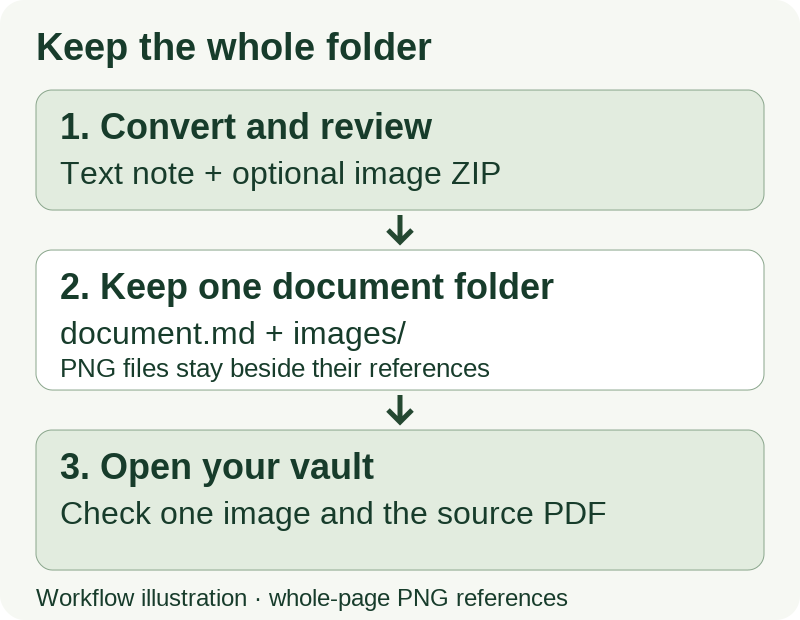
Use Download ZIP + images if you enabled page images before conversion. The ZIP contains document.md and an images folder with whole-page PNGs. Keep both when you unzip it. Copying the text or downloading the .md alone leaves you with image references but no image files.
Whole-page images are useful when a diagram, equation or table layout needs to remain visible. Individual figures are not cropped out, and the image does not become editable chart data.
You can compare these three sample files:
- Original PDF: selectable text on page 1 and an image-only page 2.
- Default Markdown output: the text extraction without OCR.
- Markdown and page-image ZIP: the actual image-enabled export, without OCR or manual correction.
What page 2 becomes in the exported note
Original PDF, page 2. The sample order number is printed inside the scanned page.

Actual excerpt from document.md in the sample ZIP, converted with page images and without OCR.
<!-- Source page 2 -->
The order number is still in the PNG. If you move only document.md, the relative image link loses its target. Unzip and move the whole folder into the vault. To make the number editable, run OCR and compare it with the original before saving.
3. Move the note and images into your vault
An Obsidian vault is a local folder containing your notes. Create a separate folder for each converted document inside it. For example:
Your vault/
  Reading/
    sample-paper/
      document.md
      images/
        page-001.png
        page-002.png
      original.pdf
The image ZIP supplies document.md and images/. Add original.pdf yourself if you want to keep the source with the note. For a text-only export, the folder can contain just your Markdown and the optional original PDF.
An image reference in Markdown can look like this:
This path looks for images/ beside the note. Copy the complete sample-paper folder into your vault so that relationship stays intact. A separate folder for each document also keeps exports with identical image filenames from getting mixed together.
Open document.md in Obsidian and check that a page image appears before reorganizing the files.
4. Make the note useful for reading
Start with the passage you plan to quote or annotate. Fix its heading level, join any broken sentences, and check that a two-column page reads in the right order. Heading detection uses text size, so an unusually large line may need a different level.
For tables, compare each value with its row, column and unit. In our sample, check that Notebooks still has 12, Folders has 8 and Labels has 24. Use the table review guide for more complex layouts.
The converter's page comparison shows a PDF page beside its Markdown. To fix one page there, edit its text, select Save page changes, and download the revised output. Saved page edits are protected from later OCR. If you edit the whole output instead, save a copy before reconverting: whole-output edits pause page editing and OCR until reconversion.
You can also keep the original PDF available inside Obsidian. With original.pdf in the same folder, this embed points to its first page:
![[original.pdf#page=1]]Use the PDF for the original layout and the Markdown for editable notes. Obsidian's embedding guide covers PDF page references.
Common questions
Why are the images missing?
Check that you enabled page images before conversion, downloaded the ZIP and extracted it. Keep images/ beside document.md. If you moved either one independently, check the paths in the note.
Why do the fonts and sizes look different?
Markdown stores headings, paragraphs and lists. Obsidian's theme determines how they look. Keep the PDF or page images when the original appearance matters. See Markdown versus TXT for how structure differs from page layout.
What if a scanned page still has missing words?
Run OCR on an eligible page and compare names and numbers with the original. Faint scans and dense text can still need corrections. The scanned PDF guide explains the OCR route.
Is my PDF uploaded for conversion?
The PDF and extracted text are processed on your device. The page loads conversion assets or OCR models and sends basic usage statistics, which exclude document names and contents.
Start with the sample in the converter, then move its exported folder into your vault.
Sources and sample: vault and embedding instructions follow Obsidian's vault guide and embedding documentation. Our public sample ZIP was generated with page images enabled and checked for working file references after copying the complete folder. Reviewed October 26, 2026.