Markdown to PDF Code Blocks: Fix Clipped Lines and Check the Export
If code is cut off on the right of your Markdown-to-PDF export, check whether the code block still uses non-wrapping print styles. Where custom HTML print CSS is supported, allow visual wrapping and check the saved PDF against the source. Keep the original .md or source file for anyone who needs to run the code.
An online code box can scroll horizontally. A printed page cannot reveal hidden text that way, so check both ends of the longest line after export.
Start with a supported export route
For a hosted route, CloudConvert offers MD-to-PDF conversion. Check its current upload requirements and page settings. If you need control over print styles, use an HTML-based exporter that explicitly accepts custom CSS. For local editor and Pandoc routes, see the general export guide.
Do not insert line breaks into executable code just to make it narrower. Try the exporter's wrapping, orientation or margin controls first. If the example itself must be shortened, make that an intentional edit and check its behavior separately.
Check a short block before exporting the full file
Use this formatting sample in a fenced code block. It is text for inspection, not a command to execute:
BEGIN SAMPLE
    INDENTED LINE: retain these four leading spaces
TOKEN: ABCDEFGHIJKLMNOPQRSTUVWXYZ0123456789ABCDEFGHIJKLMNOPQRSTUVWXYZ0123456789
PUNCTUATION: [] {} () <> = : ; / + - _
FINAL LINE: confirm this line appears in the saved PDF
END SAMPLE
Check the indentation, both ends of the long token and the final marker. If fence markers appear as prose, fix the Markdown syntax or renderer support before printing. The CommonMark fenced-code specification describes the syntax; the language label alone does not ensure highlighting.
If the block renders correctly but scrolls sideways, inspect print preview for the right edge. Syntax colors are secondary to complete characters and readable spacing.
Actual before and after: the final token disappears
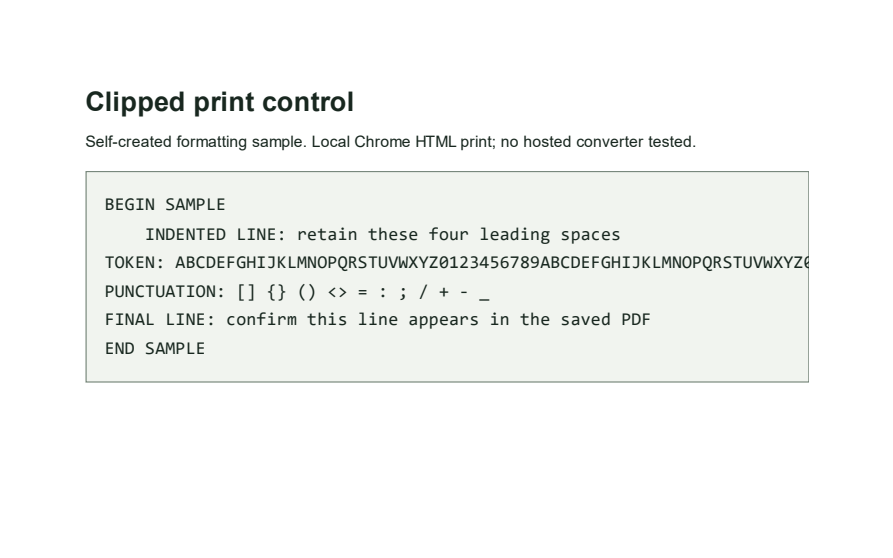
We printed the same self-created formatting sample through local Google Chrome on November 16, 2026. Both controls used A4 pages, 20 mm margins, a 16 px monospace code block and the same source text. The first control used non-wrapping text with hidden overflow. The second changed only the print rules for wrapping and keeping the short block together.
The HTML sources are served as plain text. Save either one with a .html extension if you want to reproduce its browser print locally.
In the first saved PDF, the TOKEN line is cut off at the right edge. Its ending marker, _END_TOKEN, is absent from the extracted PDF text too. The final line of the block is still present, so checking only the end of the document would miss this failure.
In the second saved PDF, the same token wraps onto additional display lines and its ending marker is visible. All non-whitespace characters from the source block appear in sequence in the extracted PDF text. The indented line also remains visually indented.
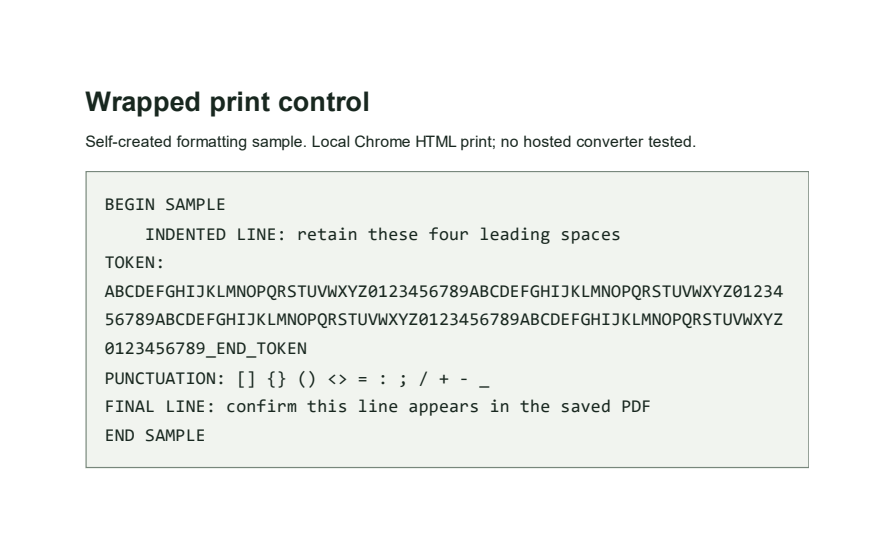
This is a controlled browser-print example, not a CloudConvert or other hosted-service comparison. The sample is inspection text, not executable code. The text check disregards whitespace; it does not establish exact clipboard recovery, preserved program semantics or correct behavior for blocks spanning multiple pages.
If custom print CSS is available
For an HTML-to-print route you control, this starting point preserves whitespace, allows long lines to wrap and requests that blocks stay together:
@media print {
  pre {
    white-space: pre-wrap;
    overflow-wrap: anywhere;
    break-inside: avoid;
  }
  pre code {
    white-space: inherit;
  }
}
The pre code rule matters when an editor theme gives the inner code element its own non-wrapping style. Inspect both elements if a change to pre alone does not work.
The white-space and overflow-wrap properties control presentation. They do not rewrite the source program. Check copied text separately before running it.
The break-inside property requests fragmentation behavior; a block taller than the page still needs a suitable split or layout. These styles apply only where the exporter supports custom HTML print CSS, not to every online converter or a LaTeX PDF engine.
If the service has only basic page controls
Try landscape orientation or smaller margins, then recheck the same sample. Reduce font size only while punctuation remains comfortable to read.
If the saved file is still clipped, choose an exporter with suitable layout control. For a long program, use a shorter explanatory excerpt and supply the complete source as an accompanying file. Preserve meaningful lines when quoting someone else's example.
Check the PDF readers will receive
Open the downloaded file in a PDF reader. Compare the first and last lines, indentation, punctuation and longest line with the Markdown. Look across page transitions for a footer or page number inserted into the copied code.
If the PDF supports text selection, copy an important block into a plain-text editor and compare it with the source before executing it. Keep the original code with the handoff.
For missing pictures, use the image-path guide. For upload decisions, use the online processing guide. Our browser PDF-to-Markdown converter works in the opposite direction.
Sources and review: CommonMark code syntax, MDN CSS references and CloudConvert's conversion page linked above. Reviewed October 26, 2026. Updated November 16, 2026 with the linked local Chrome print controls and unchanged Markdown sample. The print style has been checked on that short sample, not across hosted services or every PDF engine.